In the world of terminal commands, the ls command is a staple, but it can be a bit dull. If you're looking to add some pizzazz to your terminal, the eza command is here to save the day. In this blog, I'll show you how to install and use eza to transform your terminal experience from mundane to magnificent.
What is eza?
eza is a modern replacement for the ls command. It offers a more colourful and informative output, making it easier to navigate and understand your file system at a glance. With features like icons, tree views, and more detailed information, eza is perfect for anyone looking to enhance their terminal usage.
Installation
To get started, you'll need to install eza. The installation process varies depending on your operating system. For macOS users, the simplest method is using Homebrew:
brew install eza
For other systems, head over to eza.rocks for detailed installation instructions.
Basic Usage
Once installed, you can start using eza just like you would with ls. Here’s a basic example:
eza
Out of the box, you'll notice the difference in colour coding, which helps distinguish between different file types.

Advanced Features
eza shines with its additional options. Here are some commands to get the most out of eza:
Tree View
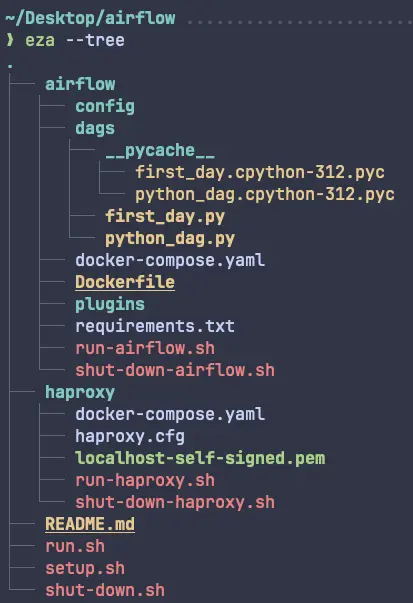
eza --tree
This command displays files and folders in a tree structure, making it easier to see the hierarchy of your directories.
Single Line View
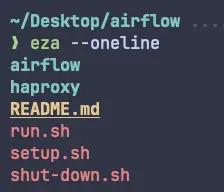
eza --oneline
For a concise view, this command lists files in a single line format.
Detailed View
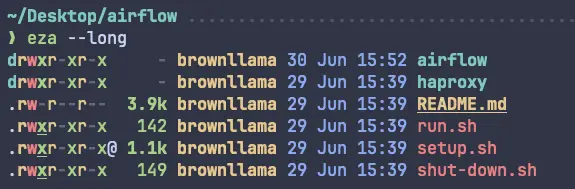
eza --long
This provides a detailed view of files, including additional information such as file permissions, owner, and modification dates.
Hidden Files
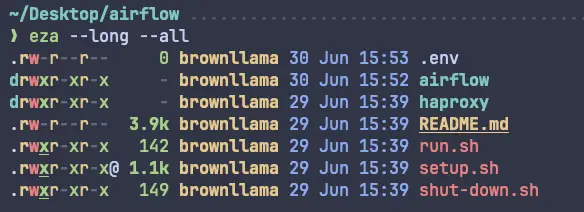
eza --long --all
To see hidden files, combine the --long and --all options.
Icons
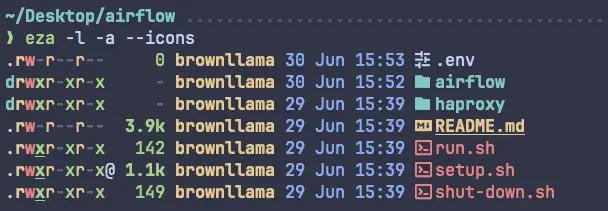
eza -l -a --icons
To make it easier, you can simply write down *-l *for --long instead. Similarly, -a instead of --all. Adding --icons displays icons next to file names, adding a visual touch.
Group Directories First
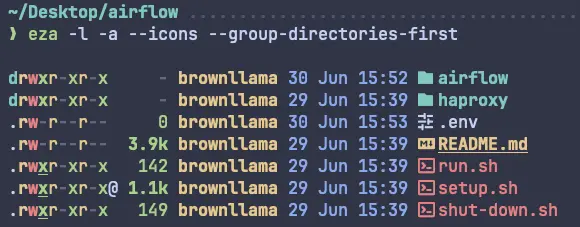
For those, who have some kind of OCD, like me and would like to see first all the directories and then files, eza got you covered as well.
eza -l -a --icons --group-directories-first
This command sorts directories before files, providing a cleaner look.
Creating an Alias
Typing long commands every time can be tedious. To streamline your workflow, you can create an alias in your .zshrc file:
Open your .zshrc file:
nano ~/.zshrc
Add the following alias at the end:
alias l='eza -l -a --icons --group-directories-first'
Save and exit by , then source the .zshrc file:
source ~/.zshrc
Now, simply typing I and it will execute your customized eza command.
Conclusion
By upgrading from ls to eza, you add a layer of functionality and aesthetics to your terminal that makes file navigation more enjoyable. With features like tree views, icons, and detailed information, eza is a powerful tool for any command-line enthusiast.
Upgrade Your ls to eza
Head over to eza.rocks for more information and start transforming your terminal today!
Other blog posts from datadice
Google Data Analytics Updates July 2024
Choose Right Color Theme for your Dashboard
9 Tips and Tricks to enhance user experience on Power BI
Further Links
Follow us on LinkedIn for insights into our daily work and important updates on BigQuery, Data Studio, and marketing analytics.
Subscribe to our YouTube channel for discussions on Data Warehouse, BigQuery, Looker Studio, and Google Tag Manager.
If you are interested in learning BigQuery from scratch, get access to our free BigQuery Course
Elevate your skills with Google Data Studio and BigQuery by enrolling in our Udemy course.
Need help setting up a modern, cost-efficient data warehouse or analytical dashboard? Email us at hello@datadice.io to schedule a call.